
Productive Workspace Setup
Learn how to set up a productive workspace with ergonomic desk and chair fit, proper lighting, and sound control for better focus and efficiency.
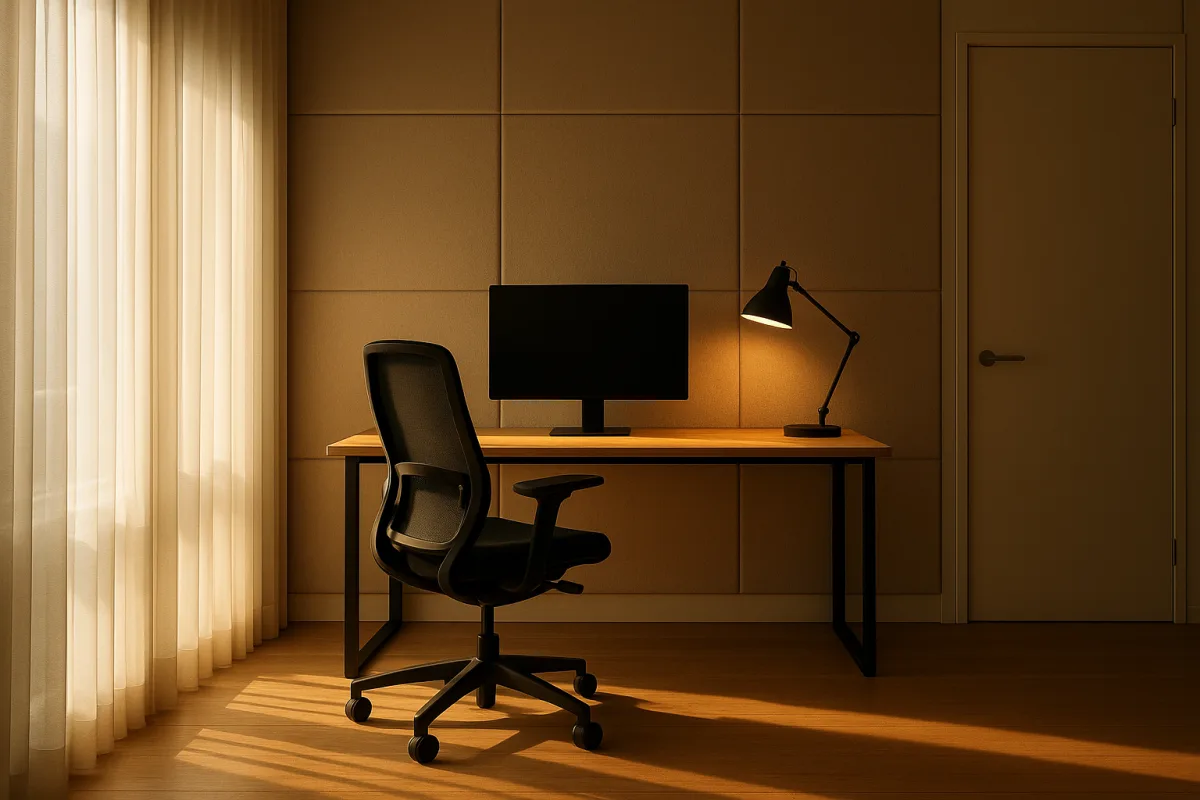
First, decide where work can happen without becoming the rest of your life
The first workspace problem is usually not ergonomics. It is choosing a spot where work continually leaks into leisure, or where household activity repeatedly cuts through tasks that need sustained attention.
If you have a separate room, use the physical boundary. If you do not, make a smaller one: assign one side of a table to work, keep leisure devices elsewhere during work periods, and pack work materials into storage when finished. Mixing work and leisure space is repeatedly identified as a distraction risk. [13][17]
Choose position before buying furniture. A desk shoved into a dark corner may save floor space, but it creates a lighting problem you will spend money trying to repair. A desk directly facing a bright window can create screen glare instead. [4][13]
The workable compromise is usually a desk near a window with daylight coming from the side, rather than directly in front of or behind the screen. That gives you access to daylight while making glare easier to control with blinds, curtains, monitor positioning, and task lighting. [4][9]
Do not assume a window solves lighting by itself. Indirect daylight can range from about 500 to 2,000 lux, while direct sun can run from 5,000 to more than 50,000 lux. The variation is why a workspace needs artificial light as well. [5]
There is no supplied evidence that a particular paint colour, houseplant, or style of desk makes people more productive. Those choices may make a room more pleasant to use, but they are not substitutes for enough light, a workable surface, and fewer interruptions.
Then make the desk fit the work, and your body
A desk that looks spacious in a product photograph can become cramped as soon as you add a monitor, keyboard, notebook, charger, and the documents needed for the task. Start by listing what stays out during an ordinary hour.
For one monitor, a 48-inch-wide desk is generally sufficient. For two monitors or a gaming setup, guidance suggests 55 to 60 inches. A depth of 24 to 30 inches gives room to place the screen at a sensible distance rather than pressing it against the wall. [3]
Standard desk height, 28 to 30 inches, is intended to suit people roughly 5 feet 4 inches to 6 feet 1 inch tall. Shorter users may need 27 to 28 inches, while taller users may need 30 to 31 inches. [3]
Those numbers are a starting point, not a rule to endure. Set seated or standing height so your elbows are at about 90 to 100 degrees and your forearms are level or slope slightly downward toward the keyboard. [3]
This is where fixed-height furniture often breaks down. A desk can be technically “standard” and still be wrong for you, especially if your chair cannot lower enough, your feet do not reach the floor, or the armrests collide with the desk edge.
Set the chair before adjusting anything else. Aim for feet flat on the floor, thighs roughly parallel to it, and knees at about 90 degrees. Then set the desk or keyboard height around that seated position. [3]
If your feet dangle after lowering the chair to reach the desk, use a stable footrest rather than perching forward. If armrests prevent you from getting close enough to the desk, lower them, move them back, or remove the obstruction.
The chair decision comes before the premium desk decision
A chair does not need to be expensive to be adjustable, but adjustment is the point. The useful baseline features are adjustable lumbar support, seat height and depth adjustment, 4D armrests, a reclining back with multiple lock positions, and breathable materials. [3]
The supplied chair guidance puts the Sihoo M57 at about $190 in the budget tier. It suits a buyer who needs the basic adjustment category without spending heavily, but the price is for the chair, not a complete workstation or a guarantee of fit. [3]
In the $300 to $700 middle range, the Branch Ergonomic Chair Pro is listed at about $450 to $500. It suits someone who expects to spend regular hours seated and wants more durable, adjustable equipment without entering premium pricing. [3]
At the premium end, the LiberNovo Omni Pro is listed at $1,299. It suits someone prepared to pay for a higher-end chair, but price does not remove the need to check seat depth, armrest position, and desk compatibility. [3]
The same source treats build quality and a 10- to 12-year warranty as durability indicators. That is useful purchasing information, not evidence that one chair will improve concentration more than another. [3]
This field has more confident claims than direct comparative evidence. The brief does not identify studies showing that a particular chair feature produces a quantified productivity gain, so buy for fit, adjustment range, warranty, and the time you actually spend seated.
Put the monitor where your neck and eyes do not have to negotiate
Once the desk and chair are set, position the monitor. OSHA guidance recommends a general viewing distance of 20 to 40 inches, with the top line of the display at or below eye level. [1]
The desk guidance gives a narrower starting range of 20 to 26 inches for many setups. Use that as a first placement, then adjust based on screen size, text size, and whether you are leaning forward to read. [3]
Screen size changes the practical distance. A 24-inch monitor is commonly suited to 20 to 24 inches away, while a 27-inch model is generally more comfortable at 26 to 32 inches. [16]
A 32-inch monitor needs more room, roughly 30 to 40 inches according to HP’s home-office sizing guide. That makes it a poor fit for a shallow desk, even if its larger screen initially seems useful for multitasking. [16]
Keep the screen large enough to read without leaning in, but not so large that you constantly turn your head across it. The general target is for the monitor to occupy about 30 to 40 degrees of your horizontal field of view. [1]
There is no supplied evidence that curved monitors or multi-monitor layouts have a defined advantage for focus or eye strain. If you use two screens, the practical issue is desk width and placement, not a promise that more pixels create better work. [3]
Fix light after screen placement, not before
A bright room is not automatically a well-lit desk. The useful target for reading, writing, and screen work is about 500 lux at the desk surface, with task lighting used to supplement daylight. [4][5]
Layer the lighting. Use general room light so the surrounding area is not dark, task light for the desk surface, and optional accent light only if it does not create reflections. This approach is more controllable than relying on a ceiling fixture alone. [9][11]
Place a desk lamp so it lights the work surface rather than shining into your eyes or reflecting off the monitor. If you write by hand, position it to reduce shadows cast by your writing hand. Glare control matters as much as nominal brightness. [4]
Use cooler or neutral light, around 4000 to 5000K, from morning through early afternoon. Shift toward 3000 to 4000K later in the day if that is more comfortable for the workspace. [10][11]
These colour-temperature recommendations are comfort guidance, not proof that a bulb will make you focused. The research brief found no direct evidence on the ideal timing of natural light exposure for workplace productivity, so avoid turning lighting into a self-diagnosis project.
If eye discomfort, headaches, persistent fatigue, sleep problems, or changes in mood are affecting work, treat those as health questions and speak with a clinician. A monitor arm and warmer lamp are not medical care.
Deal with noise as a speech problem
People often try to solve distraction with headphones, then discover that the real issue is conversations they can almost understand. For deep concentration, guidance suggests keeping background noise below 40 dB, with 45 dB as a practical upper limit. [6][7]
General office work can tolerate roughly 40 to 45 dB, but levels above 50 dB are more disruptive. Open-plan offices commonly sit around 50 to 65 dB, and levels above 65 dB are associated with impaired concentration. [6]
Start with the physical fixes. Close a door, move away from a shared television or kitchen route, add a rug, curtains, fabric panels, upholstered seating, or acoustic tiles where sound bounces around hard surfaces. [7]
If you cannot control the room, use sound masking. White noise, brown noise, and nature sounds can obscure speech, which is often the distracting element. There is no consensus that one type works best for everyone. [7]
That uncertainty matters. Do not spend a week trying to find the scientifically perfect rain soundtrack. Choose one that makes nearby speech less intelligible without becoming another thing to monitor, then keep it or drop it.
Make storage support the next task, not an imaginary tidy desk
Clutter is a real workspace problem because it competes for space and attention, but the usual instruction to “keep only essentials” is incomplete. You need to define essentials by task, not by what looks minimalist. [13][14]
Keep your daily tools within reach: keyboard, pointing device, notebook or paper pad, charger, water, and the documents required for the current job. Put cables, spare stationery, unopened mail, and infrequent equipment into nearby storage. [13][15]
Avoid filling the desk with permanent organisers before you have worked there. Overcrowding reduces usable personal space, and insufficient storage merely turns the desktop into the default storage unit. [14][15]
A simple end-of-session reset is more useful than a grand weekly reorganisation. Return loose items to their assigned place, clear material that belongs to another task, and leave tomorrow’s first item visible if it genuinely helps you restart.
Recheck the setup when the season changes
A setup that works in a bright, mild month can become dim, stuffy, or cold later in the year. Reassess daylight, task lighting, ventilation, and temperature rather than assuming the original layout has failed. [10]
The supplied seasonal guidance recommends roughly 68 to 72°F, or 20 to 22°C, in colder months. In warmer periods, use ventilation, a fan, or air conditioning to maintain a stable, workable room temperature. [10]
Humidity and insulation matter too. A dehumidifier may be useful in persistently humid areas, while insulation and reliable heating or cooling help where indoor temperatures swing sharply. [10]
The two systems worth keeping are modest: make the physical setup adjustable, and do a short reset when conditions change. Neither produces instant discipline. They simply remove a few predictable reasons work becomes harder than it needs to be.
Frequently Asked Questions
How do I set up a productive workspace at home?
Begin by choosing a location that separates work from leisure to reduce distractions. Use a physical boundary like a separate room or designate a specific side of a table for work. Position your desk near a window with indirect daylight coming from the side to balance natural light and minimize screen glare. Keep your workspace clear by deciding what items must stay out during work and store the rest to avoid clutter.
What is the best ergonomic setup for a productive workspace?
Your desk and chair should fit your body so that your elbows rest at about a 90 to 100-degree angle, with feet flat on the floor and thighs parallel to the ground. The monitor top should be at or slightly below eye level, positioned about 20 to 26 inches away. Adjust desk height and chair settings so your forearms are level or slope slightly downward toward the keyboard. These adjustments vary by individual height and work habits.
How should I position my desk and chair for maximum productivity?
Place your desk near a window with daylight coming from the side rather than directly in front of or behind your screen to reduce glare. Adjust chair height so your knees are at a 90-degree angle and feet rest flat on the floor. Ensure your elbows form a 90 to 100-degree angle when typing, with forearms parallel or slightly angled downward. Choose desk dimensions that accommodate your monitor(s) and work materials comfortably.
What lighting conditions improve productivity in a workspace?
Aim for about 500 lux of light at your work surface, combining indirect daylight with adjustable artificial task lighting. Because natural light varies widely—from 500 lux in indirect daylight to over 50,000 lux in direct sun—artificial lighting is necessary to maintain consistent illumination without causing screen glare. Adjust lighting color temperature throughout the day, using cooler tones in the morning and warmer tones later to support circadian rhythms.
How can I reduce distractions in my workspace to improve focus?
Control noise levels by keeping background sound below 40 to 45 decibels for deep work. Use physical barriers like doors or soft materials such as carpets and fabric panels to absorb sound. Sound masking with white noise or nature sounds can help mask speech distractions. Also, maintain a clear and organized desk to minimize visual clutter that can interrupt concentration.
How we researched this
This article was assembled from 17 cited references.
Nothing here is based on hands-on testing. Where a figure or finding appears, it belongs to the source cited beside it, and the writing says so rather than implying otherwise. Every source is listed below so you can check it.
Sources
- eTools : Computer Workstations - Workstation Components - Monitors | Occupational Safety and Health Administration
- Desk with Floating Shelves — Build the Perfect Workspace (2026)
- Desk Dimensions Guide – Height, Width, Depth & Setup
- How to Choose Home Office Lighting? Desk Lamp, Glare Control and Circadian Setup | Compare2Best Lighting
- Desk Lighting — Lux Levels, Color Temperature, and Glare Per IES and Cornell Research | remoteworkgeek.org
- Safe Workplace Noise Levels 2026 (OSHA, NIOSH & WHO Limits)
- Sound Management & Acoustics in the Office | The Modern Workspace
- Best Lighting for Deep Work: Office Lighting Setup for Focus | Standesk
- Home Office Lighting Guide
- Creating a Productive Workspace for All Seasons - Toxigon
- Workspace Lighting Guide 2026: Illuminate Your Productivity | SupplyWise
- How to Choose the Best Office Lighting for Productivity | Lowe’s
- 6 Desk Layout Mistakes That Reduce Daily Productivity - Slummy single mummy
- Desk Layout & Productivity: Improve Workplace Efficiency
- 8 Common Office Interior Mistakes and How to Avoid Them
- What is the Best Monitor Size for Working from Home | HP® Official Site
- Are these 6 home office design mistakes ruining your productivity?
Related Articles
Best Environment for Productivity: Key Workspace Conditions
Discover the best environment for productivity with tips on lighting, noise, ergonomics, and temperature to optimize your workspace.

Best Ergonomic Chairs for Productivity: Leap V2 vs Aeron
Compare the best ergonomic chairs for productivity: Steelcase Leap V2 and Herman Miller Aeron Remastered. Find which fits your work style best.

Signs of a Productive Team: Outcomes, Flow, and Conditions
Discover the signs of a productive team by examining outcomes, workflow, and working conditions for sustained success.
Best Time of Year for Productivity: What Science Shows
Discover the best time of year for productivity and how seasonal changes can help you plan work more effectively.